02 Components
Create a Component
A component captures the selection inside of an intelligent invisible shell. Follow these steps to make a component.
- Using the Select tool, select the entities to be made into a component.
- Right-click on the selection and choose "Make Component...".
- Give the component a Definition name.
- Click "Create".
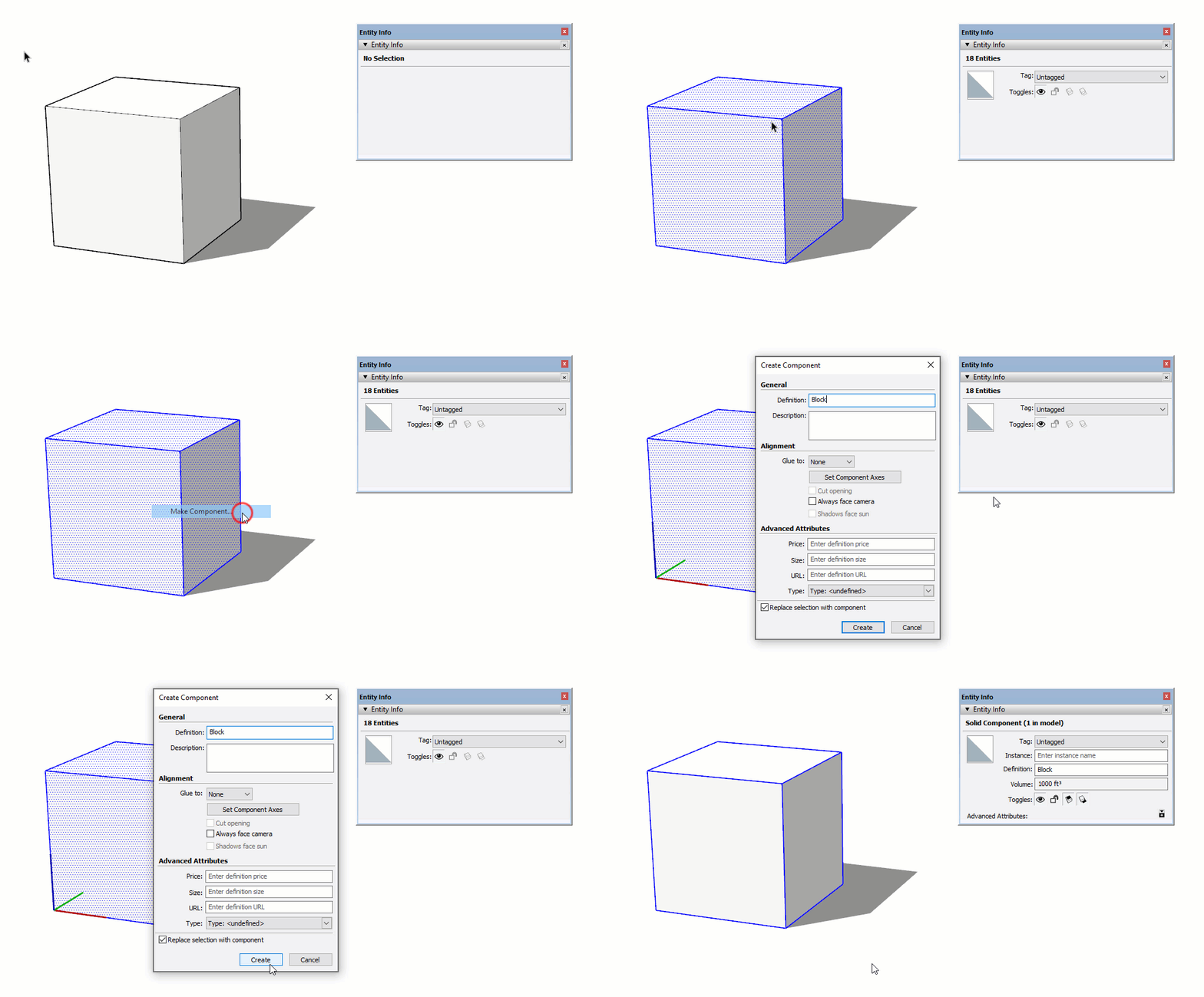
HEADS UP! You can right-click on a group and convert it to a component by choose "Make Component".
Explode a Component
Just like a group, exploding a component removes the top level invisible intelligent shell, exposing the contents. This will break the link between the other instances of the component. Keep in mind that the contents can be any entity; edges, surfaces, groups, components, images, text, etc, even other components. You can break down a component by using the Explode command.
- Using the Select tool, select a component.
- Right-click on the selected component and choose "Explode".
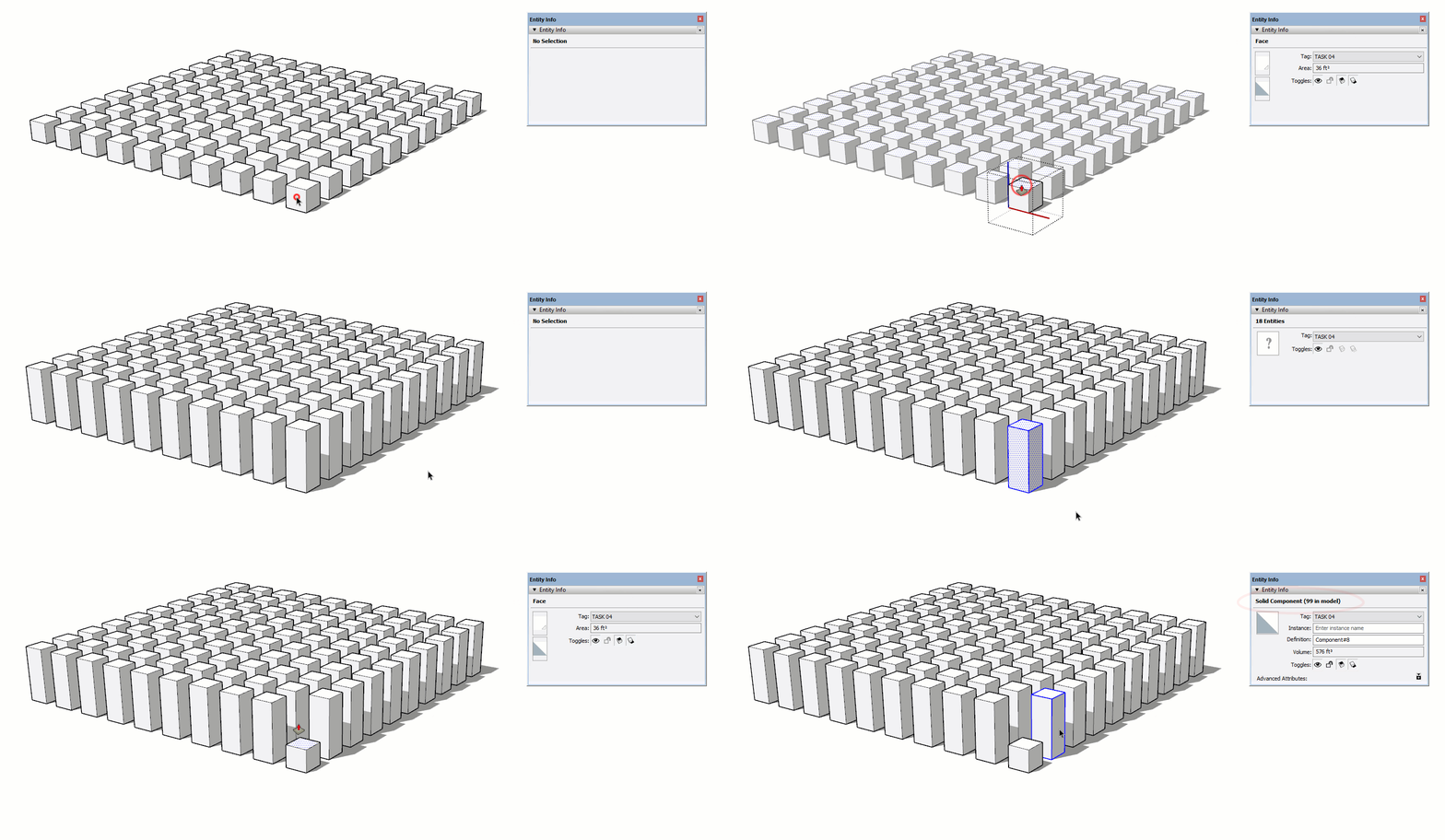
HEADS UP! Exploding a component does "unlink" the content from other component instances, but the Make Unique command is a better solution, keep reading...
Make Unique
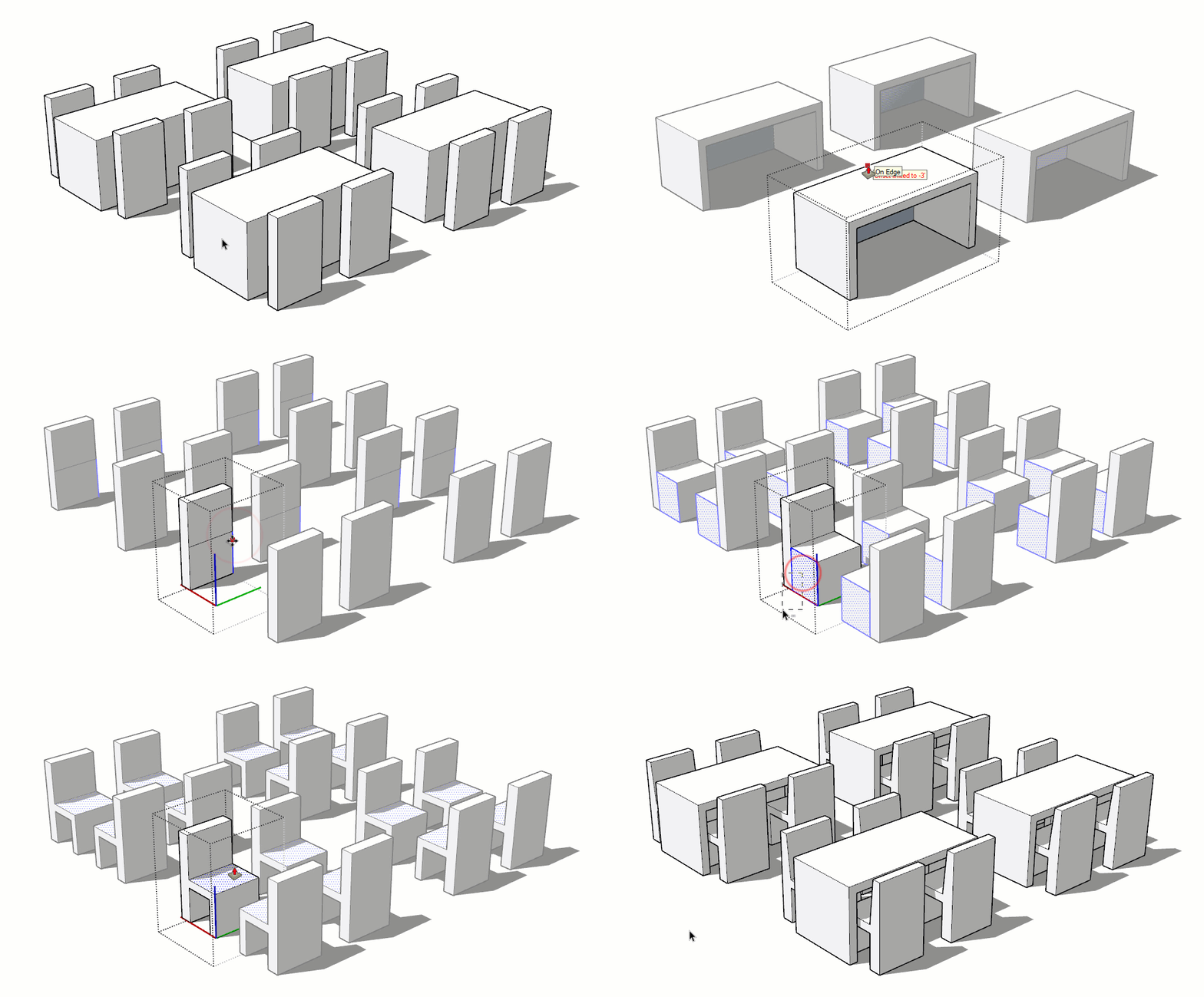
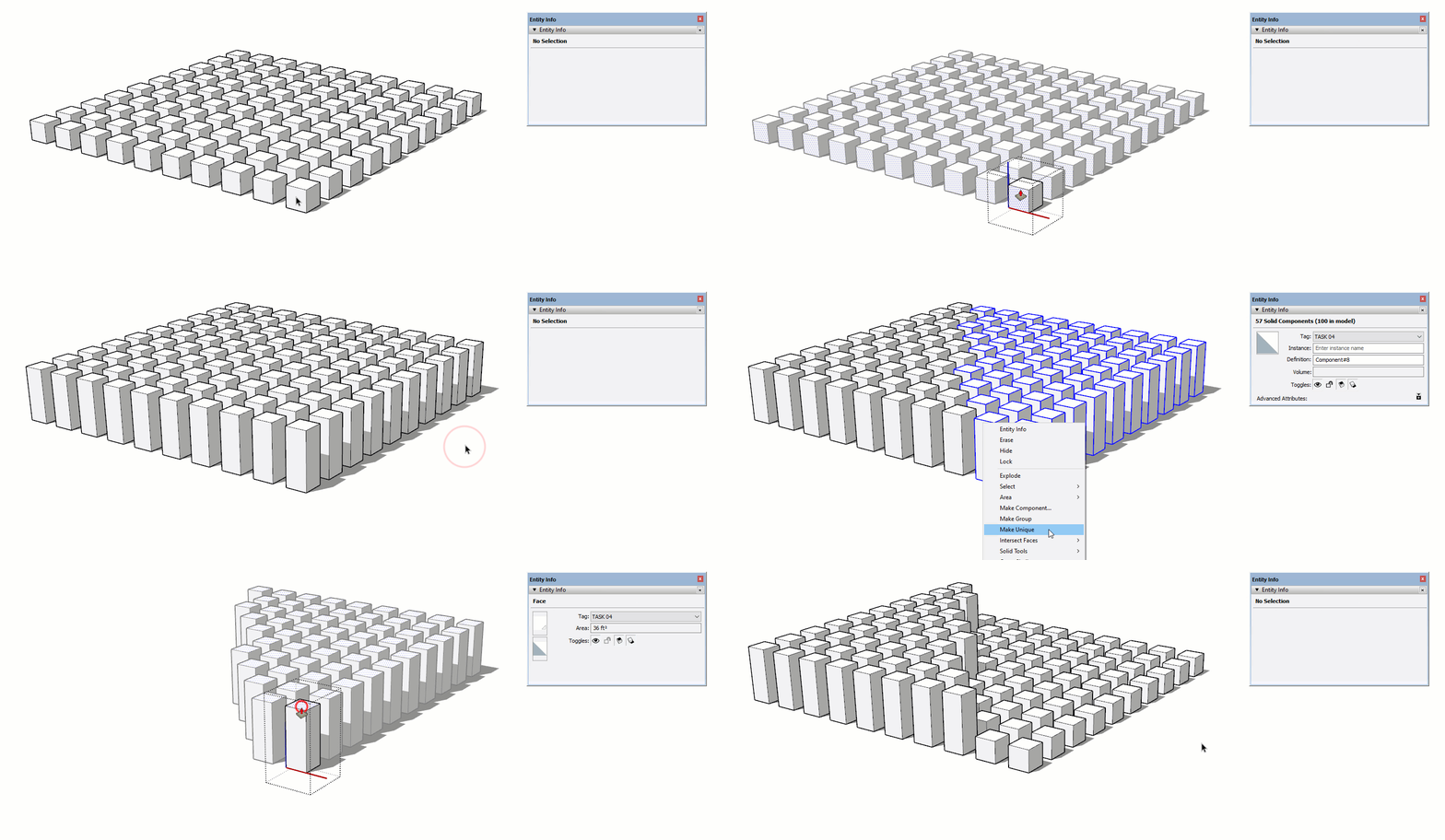
The Make Unique command is used for similar elements. It is similar to a Save Copy As command in other programs. The original component instance(s) are left connected and intact, and a new component instance is created based on the selected component(s). Use this command when you want to modify the component, but don't want the other instances to change. To make a component, or multiple components, unique, select them, then right-click on the selection and choose Make Unique.
Mirror
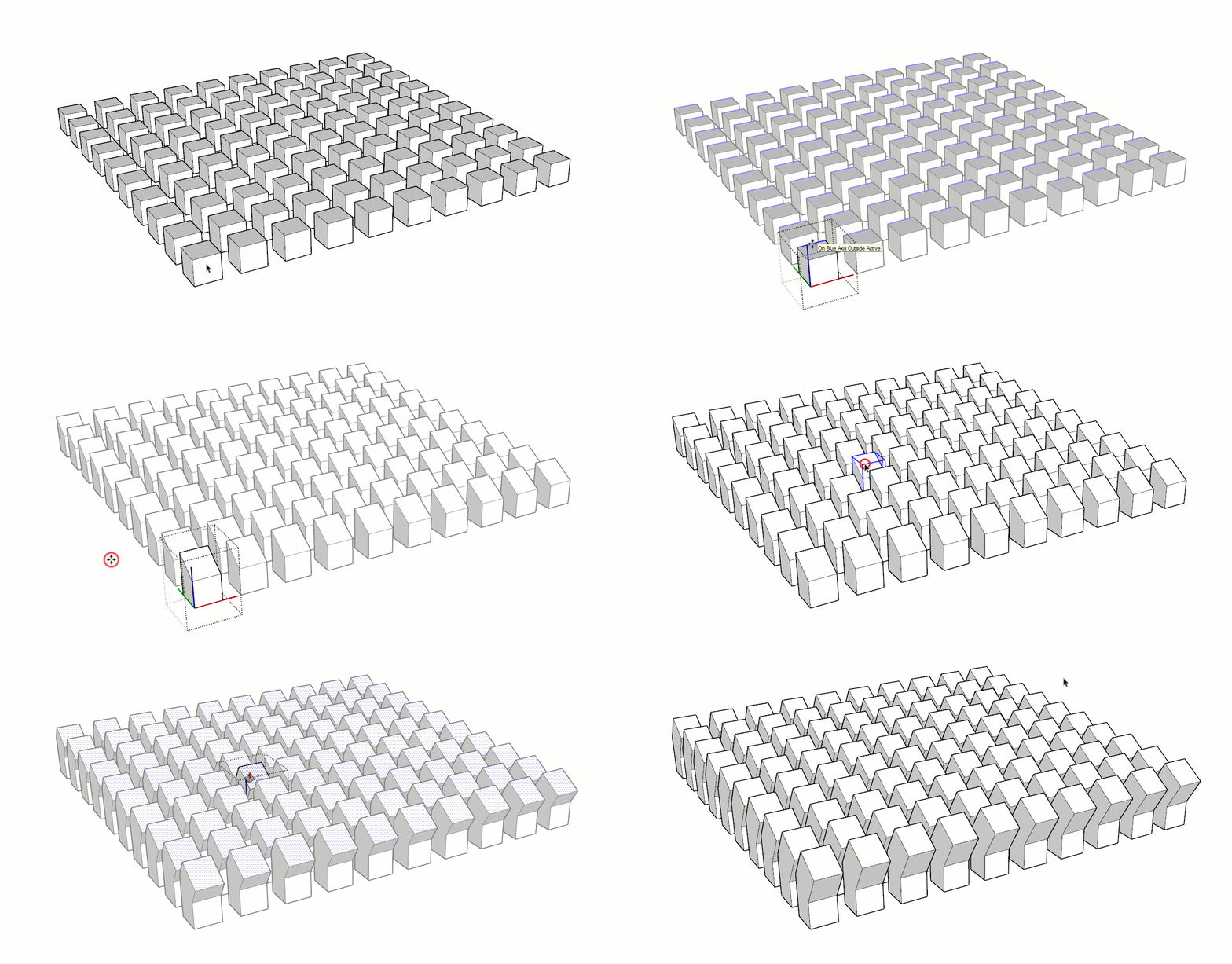
There is a difference between modifying the component compared to modifying the contents. Only the contents of the component are linked. For instance, you can scale the component object without affecting the other components. But if you double-click into a component and run the same scale operation, you will see those changes applied to all instances.
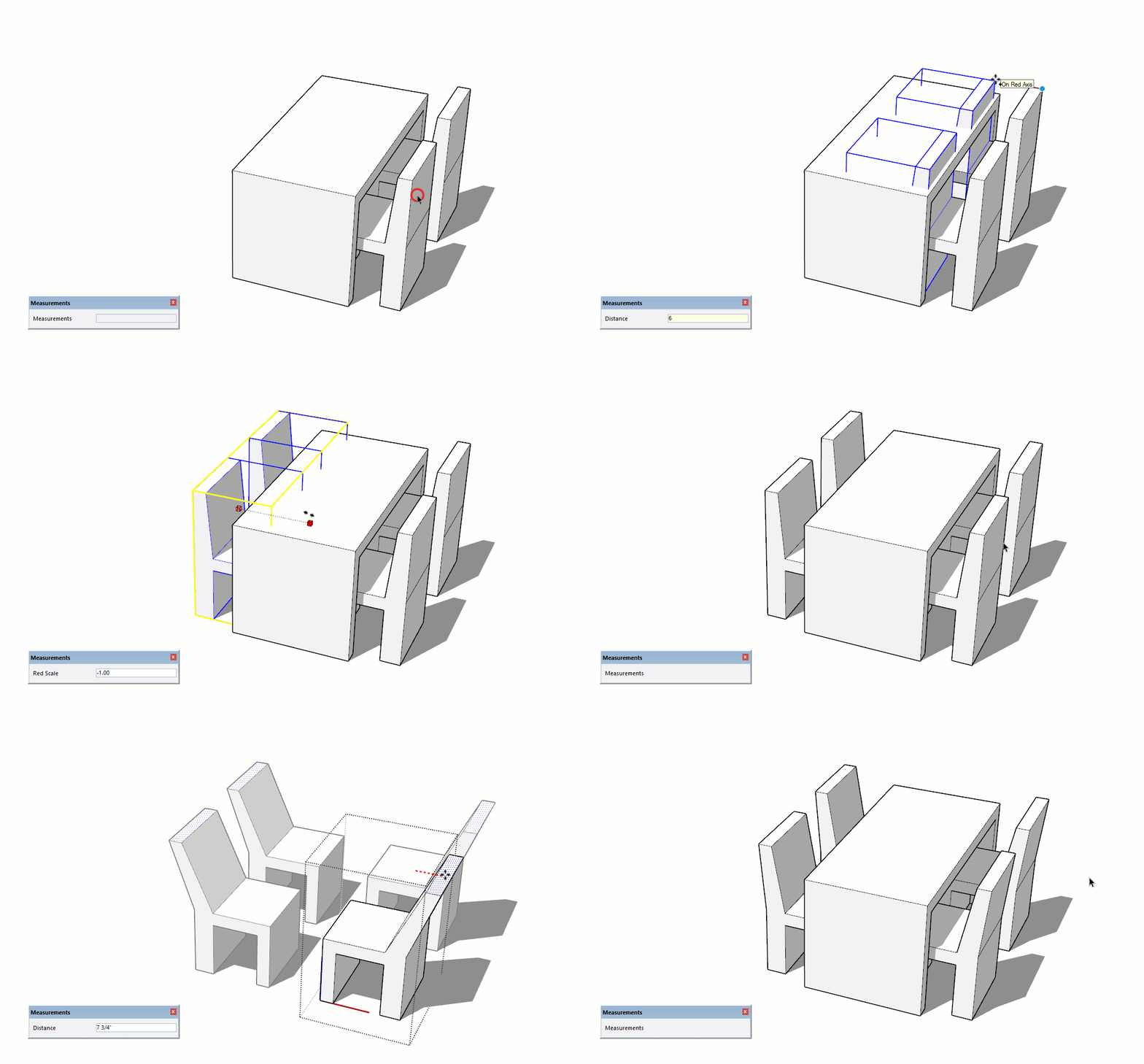
You can build extremely efficient models by mirroring components along lines of symmetry. There are two ways to mirror a component.
- Using the Scale Tool, fold the component inside out by scaling to a factor or -1.
- Right-click on a component and choose "Flip Along", and choose an axis